
A 4K60 HDMI capture card can record or stream sharp gameplay while letting you play through a separate display. The key is matching the card to your setup: some are internal PC cards, while others connect over USB, and their capture limits can differ from their passthrough limits. Below are five options for gaming PCs, with the important specs and trade-offs to check before you buy.
Quick Comparison
| Capture card | Connection | Notable capture and passthrough specs | Best fit |
|---|---|---|---|
| Elgato 4K Pro | Internal | 4K60 HDR10 capture; up to 8K60 passthrough | Gaming PCs and high-end HDMI 2.1 setups |
| AVerMedia Live Gamer ULTRA S | USB-C | 4K60 capture; 4K60 HDR and VRR passthrough | Flexible PC, console, and ultrawide setups |
| BlueAVS 4K60 HDMI Capture Card | USB-C | Up to 4K60 capture; high-refresh input support | High-refresh and ultrawide gaming on a budget-conscious setup |
| GENKI ShadowCast 3 Pro | USB-C | 4K60 capture; 1440p120 and 1080p240 support | Portable streaming and capture |
| Guermok 4K@60FPS Capture Card | USB 3.0 or higher | Up to 4K60 capture and passthrough; format-dependent capture limits | Plug-and-play capture with broad device support |
Our Picks: Best 4K60 Hdmi Capture Cards For Gaming Pc reviews
1. Elgato 4K Pro: An Internal Card for HDMI 2.1 Gaming

The Elgato 4K Pro is an internal capture card built for a gaming PC with HDMI 2.1 connections. It captures up to 4K60 HDR10 and supports passthrough up to 8K60. It can also capture up to 1080p240, making it a strong match for fast-paced games where you want a high frame rate in your recording.
Its HDMI 2.1 input and output support VRR passthrough, which can help preserve a smooth display experience when your other equipment supports variable refresh rate. Elgato also lists compatibility with apps such as OBS, Streamlabs, Twitch Studio, and Zoom. Since this is an internal card, check your PC’s available expansion slot and case clearance before ordering.
Compared with the external options here, the 4K Pro is aimed at a more permanent desktop setup rather than portability. It is the clearest fit if you want HDMI 2.1 features and high-resolution passthrough in a gaming PC, but it is less convenient to move between computers.
Pros:
- Captures up to 4K60 HDR10
- Supports up to 8K60 passthrough
- VRR passthrough for compatible displays and sources
- Can capture up to 1080p240
Cons:
- Internal design requires a compatible PC installation
- Its high-end features may be more than you need for basic 1080p streaming
Verdict: Choose the Elgato 4K Pro if your priority is a desktop gaming PC with HDMI 2.1, 4K60 HDR10 capture, and high-resolution passthrough.
2. AVerMedia Live Gamer ULTRA S: Flexible Capture with HDR and VRR
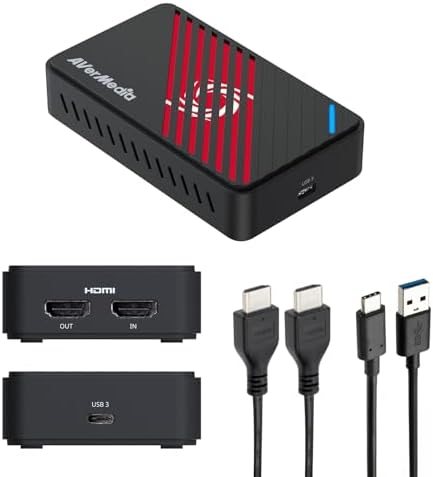
The AVerMedia Live Gamer ULTRA S is an external card that connects over USB 3.2 Gen 1 Type-C. It supports 4K60 capture and passthrough at up to 4K60, with HDR and VRR passthrough for compatible gear. It also lists support for 1440p144 and 1080p240 passthrough, giving you options for high-refresh gaming displays.
This card stands out for its broad setup options. It supports Windows, macOS, and iPadOS, and AVerMedia lists compatibility with consoles and PC sources. For ultrawide users, it supports 3440×1440 and 2560×1080 input. The product also supports 5.1-channel audio capture on Windows through Streaming Center or its OBS plug-in, so check the software requirements if surround audio matters to you.
Compared with the Elgato, it avoids an internal PC installation and offers ultrawide input support. Its software-dependent features mean that the best workflow may depend on your operating system and preferred streaming app.
Pros:
- 4K60 capture with HDR and VRR passthrough
- Supports 1440p144 and 1080p240 passthrough
- Ultrawide input support for common 21:9 resolutions
- Works with Windows, macOS, and iPadOS
Cons:
- Some features, including 5.1-channel audio capture, require specific software
- Uses a USB-C connection, so check that your computer has a suitable port
Verdict: Pick the AVerMedia Live Gamer ULTRA S if you want an external card with 4K60 capture, HDR and VRR passthrough, and support for ultrawide sources.
3. BlueAVS 4K60 HDMI Capture Card: High-Refresh and Ultrawide Support

The BlueAVS is a USB-C capture card designed for 4K60 capture and higher-refresh input modes. Its listed support includes 1440p144 and 1080p240, as well as ultrawide 21:9 formats. That makes it worth considering if your gaming PC uses a high-refresh or ultrawide display and you want the card to accept more than a standard 4K60 signal.
The card is described as UVC/UAC compliant, with no extra driver or external power required. It works with Windows, macOS, and Linux, and supports OBS and other compatible software. A 3.5 mm port provides an option for line-in or headset audio. For best results, the manufacturer specifies a USB port rated at 5 Gbps or higher; USB 2.0 limits support to 1080p.
Its broad input and format support is useful, but check that your chosen recording software and USB port can handle the mode you plan to use. Compared with the AVerMedia, the BlueAVS lists similar high-refresh input options and wider operating-system support, while AVerMedia specifies HDR and VRR passthrough more clearly.
Pros:
- Supports up to 4K60 capture and high-refresh input modes
- Accepts ultrawide 21:9 resolutions
- UVC/UAC plug-and-play design for Windows, macOS, and Linux
- Includes a 3.5 mm audio port
Cons:
- Requires a USB port rated at 5 Gbps or higher for its higher-resolution modes
- Listed capture formats and resolutions may require setup in compatible software
Verdict: Consider the BlueAVS if you need high-refresh or ultrawide input support and want a driver-free USB capture device.
4. GENKI ShadowCast 3 Pro: A Portable Card with HDMI Passthrough
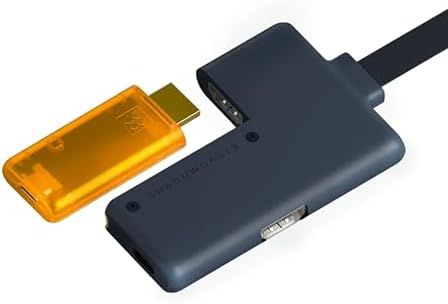
The GENKI ShadowCast 3 Pro is a compact USB-C capture device with a built-in HDMI passthrough connection. You can send the source signal to your gaming display while capturing through a laptop or other compatible device. Its listed modes include 4K60, 1440p120, and 1080p240, offering choices for both high-resolution and high-frame-rate content.
Its four connections cover HDMI input, HDMI passthrough, USB-C capture output, and passthrough power. GENKI also describes it as suitable for use with laptops and iPads, and says it is recognized by apps such as OBS, Streamlabs, Zoom, and Discord. That portable approach can be handy for travel or a secondary setup, though you should confirm the capture software and host device support the mode you want.
Compared with the internal Elgato, the ShadowCast 3 Pro is easier to move between compatible devices. Its built-in passthrough is also a useful feature for a compact external card. However, if you only stream from a fixed desktop and want HDMI 2.1 features such as 8K60 passthrough, the Elgato is the more direct match.
Pros:
- Supports 4K60 capture and HDMI passthrough
- Also lists 1440p120 and 1080p240 modes
- Compact USB-C design for laptop and iPad setups
- Includes passthrough power and a dedicated HDMI output
Cons:
- Its portable design may be less suited to a permanent internal desktop installation
- Check host-device and software support for your chosen capture mode
Verdict: Choose the GENKI ShadowCast 3 Pro if portability and built-in HDMI passthrough matter more than an internal PC installation.
5. Guermok 4K@60FPS Capture Card: Broad Compatibility and Audio Ports

The Guermok capture card combines HDMI passthrough with USB capture and lists support for many source devices, including consoles, cameras, and webcams. It works with Windows, macOS, Linux, Android, and iPadOS, and is described as plug-and-play. A USB-A adapter is included for connecting through a compatible USB-A port.
Pay close attention to its capture formats: the listed maximum is 4K60 in MJPEG, while YUY2 is listed up to 4K25. It also supports 1440p120 and 1080p120 input modes. These distinctions matter because the mode you can actually record depends on the format, software, and USB connection—not just the card’s headline resolution.
The 3.5 mm audio input and microphone output can help you connect external audio gear without relying only on HDMI audio. Compared with the BlueAVS, Guermok has broad device and operating-system support, but the BlueAVS lists 1080p240 input support while Guermok lists up to 1080p120. Confirm your target resolution and frame rate before choosing.
Pros:
- Lists up to 4K60 capture in MJPEG and 4K60 HDMI passthrough
- Supports 1440p120 and 1080p120 input
- Works with a wide range of devices and operating systems
- Includes 3.5 mm audio input and microphone output
Cons:
- Capture limits vary by format; YUY2 is listed up to 4K25
- USB 2.0 supports only up to 1080p, according to the product specifications
Verdict: The Guermok is a flexible option if you want broad device support, but check its format-specific limits and use a suitable USB 3.0-or-higher connection for high-resolution capture.
How to Choose a 4K60 HDMI Capture Card
Check capture resolution separately from passthrough
Capture describes the video sent to your computer for recording or streaming. Passthrough sends the signal onward to a display so you can play while capturing. A card may support a particular resolution for passthrough but a different resolution or format for capture. Check both sets of specifications, especially if you want 4K60 recording and a high-refresh gaming display at the same time.
Match the card to your gaming frame rate
If you play competitive games at high frame rates, look for support at the resolution you actually use. Options in this roundup list modes such as 1440p144, 1440p120, or 1080p240, but those limits vary by product and may apply to input or passthrough rather than every capture format. Read the specific mode details before buying.
Choose internal or external installation
An internal card such as the Elgato 4K Pro keeps the capture hardware inside a desktop PC, but you need to confirm your system has room and a compatible expansion slot. External USB cards are easier to move between devices, but their performance depends on connecting to an appropriate USB port. Check your PC’s ports and the card’s connection requirements.
Look for the features your display uses
HDR, VRR, and ultrawide support can matter if your source and display use those features. A card’s passthrough capabilities affect what reaches your monitor, while capture support determines what your stream or recording receives. Make sure the card supports the relevant feature at the resolution and refresh rate you plan to use.
Confirm audio connections and software compatibility
Some cards offer 3.5 mm audio connections, while others capture audio through HDMI or provide software-based audio options. If you need a headset, microphone, or multichannel audio workflow, check the port details and any software requirements. Also verify that your operating system and streaming app support the capture card’s intended modes.
Check the capture format and USB bandwidth
Capture formats can change the resolution and frame rate available to your recording software. For example, the Guermok lists different maximum resolutions for MJPEG and YUY2. USB bandwidth also matters: some products specify a faster USB connection for higher-resolution capture and limit resolution over USB 2.0. Use the required port and confirm the format you want is supported by your software.
Frequently Asked Questions
What does 4K60 mean on a capture card?
4K60 generally refers to video at a 4K resolution and 60 frames per second. Check whether a product lists that figure for capture, passthrough, or both, since the two capabilities may differ.
Do I need a capture card to stream games from my gaming PC?
Not always. A capture card is useful when you want to send HDMI video from a separate source to your PC for recording or streaming. If you are streaming the same PC you play on, whether you need one depends on your setup and workflow.
Can I play through a capture card without noticeable delay?
Cards with HDMI passthrough send the source signal to a display while the computer captures it. This lets you play through the passthrough display instead of relying on the capture preview. The products differ in their passthrough features, so check the specifications for the resolution and refresh rate you need.
Will a 4K60 capture card record 1080p at a higher frame rate?
Some cards list higher frame-rate modes at lower resolutions. For example, products in this roundup include 1080p120, 1080p240, and 1440p high-refresh support, but the exact modes vary. Confirm whether the listed rate applies to capture or passthrough.
Can I use one of these cards with a console?
Several options list support for consoles as well as PC sources. You will need an HDMI connection and a compatible computer or other capture host. Check the card’s source compatibility, connection type, and the capture software you plan to use.
Why does my capture resolution appear lower than the advertised maximum?
The chosen capture format, USB port, software settings, source signal, or available bandwidth can affect the mode you can use. Check the product’s format-specific limits and connect it to the required USB port. Also make sure your source is outputting a supported resolution and frame rate.
Final Recommendation
For a fixed gaming PC with HDMI 2.1 gear, the Elgato 4K Pro is the strongest fit in this group, with 4K60 HDR10 capture and up to 8K60 passthrough. If you prefer an external device, the AVerMedia Live Gamer ULTRA S offers a useful mix of 4K60 capture, HDR and VRR passthrough, and ultrawide input support. Choose the GENKI for portability, or consider BlueAVS and Guermok if their connection, audio, and format details better match your setup. Before buying, confirm the capture mode, passthrough mode, and connection requirements you need.