
A 4K webcam can make your online lessons look sharper, but resolution is only part of the picture. Autofocus, microphone quality, field of view, and how easily you can frame a whiteboard or desk activity all matter. Our picks include simple plug-and-play cameras, a remote-controlled model, and a PTZ webcam that can track your movement. Before you buy, check that your computer and teaching platform support the resolution and frame rate you plan to use.
Quick Comparison
| Webcam | Standout features | Best suited for |
|---|---|---|
| N newline 4K Webcam with Tripod | 4K at 30 fps, 1080p at 60 fps, PDAF/CDAF autofocus, 79° field of view | Teachers who want a tripod and a choice of detail or smoother motion |
| ceabulila 4K Webcam with Remote | Remote control, up to 10× zoom, autofocus, dual microphones | Presenters who want camera controls close at hand |
| N newline 4K Webcam with Sony Sensor | 4K at 30 fps, dual noise-reduction microphones, 77° field of view | Teachers looking for a straightforward camera with a tripod |
| OBSBOT Tiny 2 Lite | AI tracking, auto zoom, PTZ movement, 4K at 30 fps | Teachers who move around while presenting |
| j5create 4K Wide Angle Webcam | 4K at 30 fps, 1080p at up to 60 fps, dual microphones, privacy cover | Teachers who want a wide-angle camera with flexible USB connections |
Our Picks: Best 4K Webcams For Online Teaching reviews
1. N newline 4K Webcam with Tripod: Best All-Around Classroom Setup

This N newline webcam offers a useful mix of resolution options for live lessons. It supports 4K at 30 frames per second for detail and 1080p at 60 frames per second for smoother motion. That gives you flexibility if you switch between a face-to-camera lesson and a demonstration with more movement.
Its PDAF and CDAF autofocus systems are designed to keep the image focused, while automatic light adjustment helps balance shadows and highlights. The 79-degree field of view is broad enough to show more of your teaching area than a narrow webcam, but it is not so wide that it is intended to capture an entire room. A detachable metal tripod and adjustable clip give you more options for positioning it on a desk, monitor, or laptop.
The dual noise-reduction microphones and flip privacy cover add practical touches for regular teaching. The main caveat is that the supplied details do not specify a zoom control, so framing depends on where you place the camera. As with any 4K webcam, your computer, connection, and meeting software affect the resolution that participants actually see.
Pros:
- Offers both 4K at 30 fps and 1080p at 60 fps.
- PDAF/CDAF autofocus and automatic light adjustment.
- Includes a detachable metal tripod and adjustable mounting clip.
- Has dual noise-reduction microphones and a privacy cover.
Cons:
- No remote or zoom control is listed in the supplied details.
- The 79-degree view may not include a large teaching area.
Verdict: Choose this model if you want a flexible, tripod-equipped webcam for lessons that alternate between talking and showing movement.
2. ceabulila 4K Webcam with Remote: Best for Convenient Camera Control
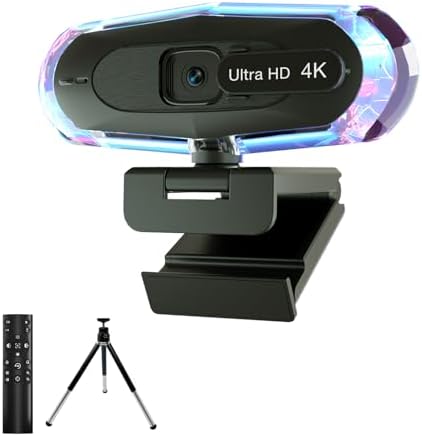
The ceabulila webcam stands out for its included remote. You can use it to control zoom up to 10×, switch between autofocus and fixed focus, mute, and adjust lighting. This can be handy if your camera is mounted above a monitor or positioned across a desk and you do not want to reach for it during a lesson.
The camera supports 4K at 30 frames per second, but the listed resolution drops to 2560 × 1440 when zoomed. Keep that trade-off in mind if you plan to use the zoom for close-ups of notes or classroom materials. Autofocus and light correction are designed to help maintain a clear image as conditions change, and the dual digital microphones aim to reduce background noise.
The webcam is listed as compatible with Windows and macOS and supports USB-A and Type-C connections. It also has a remote-controlled privacy cover. The main consideration is whether you need the remote features: if you will sit in one place and rarely adjust the frame, a simpler webcam may cover your needs without as many controls.
Pros:
- Remote controls zoom, focus, mute, and lighting.
- Supports 4K video at 30 fps when not zoomed.
- Offers autofocus and automatic light adjustment.
- Works with USB-A and Type-C connections, according to the product details.
Cons:
- Maximum listed resolution while zoomed is 2560 × 1440.
- The remote may be unnecessary for a fixed, simple desk setup.
Verdict: Pick the ceabulila if quick remote adjustments and zoom matter more to your teaching setup than keeping full 4K resolution while zoomed.
3. N newline 4K Webcam with Sony Sensor: Best Simple Plug-and-Play Pick

This N newline model is a straightforward option for teachers who want 4K video without a remote or tracking features. Its Sony 1/2.55-inch sensor supports 3840 × 2160 video at 30 frames per second. Fast autofocus is designed to keep a face clear within the stated working range of 2 to 7 feet.
The 77-degree field of view keeps the frame focused on a person or a small teaching setup. Automatic light correction and white balance are intended to help the camera adapt to different lighting, while dual noise-reduction microphones handle voice capture. A six-foot USB cable, detachable tripod, adjustable clip, and privacy cover round out the setup.
The camera is listed as compatible with Windows, macOS, Android, and Linux, and it is designed for plug-and-play use without extra drivers. It does not list a 1080p high-frame-rate option, remote zoom, or motion tracking. That makes it less adaptable than the ceabulila or OBSBOT, but also a more direct choice if you plan to stay in one position.
Pros:
- 4K at 30 fps with a Sony 1/2.55-inch sensor.
- Fast autofocus, automatic light correction, and white balance.
- Includes dual noise-reduction microphones, a tripod, and a privacy cover.
- Listed compatibility includes Windows, macOS, Android, and Linux.
Cons:
- No 1080p at 60 fps mode is listed.
- No remote control or tracking features are specified.
Verdict: This is a sensible pick for a stationary teacher who wants 4K, autofocus, and a simple USB setup rather than advanced controls.
4. OBSBOT Tiny 2 Lite: Best for Teachers Who Move Around

The OBSBOT Tiny 2 Lite is the most movement-focused option in this group. Its AI tracking and auto zoom are designed to follow a presenter and adjust framing, which can help if you teach while standing, moving between a desk and board, or demonstrating something with your hands. It also supports close-up and upper-body tracking.
The camera captures 4K at 30 frames per second and 1080p at 60 frames per second. Its 1/2-inch CMOS sensor is described as supporting improved low-light performance and HDR capabilities. PTZ controls, preset positions, image settings, and background blur are available through OBSBOT Center, while gesture controls can activate tracking and adjust zoom.
This model offers more presentation flexibility than the fixed webcams here, but it also has a more involved feature set. Tracking and software controls are most useful when you will actually move around; for a seated lesson, they may not add much. The supplied details do not list built-in microphones, so plan on another audio option if you need a mic included with the camera.
Pros:
- AI tracking and auto zoom can follow a moving presenter.
- Supports 4K at 30 fps and 1080p at 60 fps.
- Offers gesture controls, presets, and adjustable image settings.
- Includes a mini tripod.
Cons:
- The supplied details do not list built-in microphones.
- Tracking and software controls may be more than a stationary setup needs.
Verdict: Choose the OBSBOT Tiny 2 Lite if you regularly move while teaching and want the camera to help keep you framed.
5. j5create 4K Wide Angle Webcam: Best for Flexible Framing

The j5create JVU430 combines a wide-angle lens with 4K video at 30 frames per second. It can also capture 1080p at up to 60 frames per second, giving you a smoother option for lessons with movement. The wide view may suit a setup where you want to show yourself alongside a small area of your desk or teaching materials.
Its dual microphones are designed for voice pickup, and the F/2.0 lens is described as supporting better light sensitivity in dim conditions. A 360-degree swivel lets you adjust the camera’s direction, and the built-in privacy cover shields the lens when it is not in use. The included USB-C cable and USB Type-A connector provide connection options for newer and older devices.
The product details do not state a specific field-of-view angle or list autofocus, so check the framing and focus needs of your setup before choosing it. Unlike the OBSBOT, it does not list AI tracking, and unlike the ceabulila, it does not include remote zoom control. Its strength is a practical mix of wide framing, two resolution modes, and flexible USB connection options.
Pros:
- Supports 4K at 30 fps and 1080p at up to 60 fps.
- Wide-angle lens and 360-degree swivel support flexible framing.
- Includes dual microphones and a built-in privacy cover.
- Comes with USB-C and USB Type-A connection options.
Cons:
- A specific field-of-view angle is not listed in the supplied details.
- Autofocus and tracking are not specified.
Verdict: Consider the j5create if you want a wide-angle webcam with 4K and 1080p options and useful USB connection flexibility.
How to Choose a 4K Webcam for Online Teaching
Choose a resolution and frame rate for your lessons
All five picks offer 4K at 30 frames per second. Some also offer 1080p at 60 frames per second, which can make movement look smoother. For a seated lesson, 4K at 30 fps may be enough; for demonstrations with frequent motion, a 60 fps option may be useful. Keep in mind that your computer, internet connection, and video platform can affect the resolution delivered during a call.
Match the field of view to your teaching space
A narrower view can keep attention on your face, while a wider view can show more of a desk or teaching area. The N newline picks list 79- and 77-degree fields of view. The j5create is described as wide angle, but no specific angle is provided. Think about what students need to see, and avoid framing so wide that you appear small or your room becomes a distraction.
Consider autofocus, zoom, and tracking
Autofocus can help keep you clear if you lean toward the camera or hold an object up to show it. Remote zoom offers more framing control without moving the camera, though the ceabulila lists a lower maximum resolution when zoomed. AI tracking is a different feature: the OBSBOT is designed to follow a moving presenter. If you teach from one spot, basic autofocus may be all you need.
Plan for clear audio
Several picks include microphones with noise-reduction features, but the OBSBOT product details do not list a built-in mic. A webcam mic may be convenient for a quiet room, while a separate microphone can be worth considering if your space has background noise or you need consistent voice pickup. Check where the camera will sit and how far it will be from you.
Check mounting and connection options
A monitor clip is convenient for a desk setup, while a tripod can help you place the camera at a better height or angle. The N newline models include detachable tripods, the OBSBOT comes with a mini tripod, and the j5create swivels 360 degrees. Also confirm that the webcam’s connection matches your computer; the ceabulila lists USB-A and Type-C support, while the j5create includes USB-C and a USB Type-A connector.
Look for practical privacy and compatibility details
A privacy cover gives you a physical way to block the lens between lessons. The N newline models and j5create list privacy covers, and the ceabulila describes a remote-controlled cover. Before buying, check the operating system and meeting software details for the specific webcam you choose. Compatibility with a computer does not guarantee that every app will use the camera’s maximum resolution.
Frequently Asked Questions
Is 4K necessary for online teaching?
Not always. 4K can provide a detailed image, but the improvement students see depends on the camera setup, computer, internet connection, and teaching platform. A clear 1080p image may be enough for a typical face-to-camera lesson.
Will these webcams stream in 4K on every video platform?
Not necessarily. A webcam’s maximum resolution is only one part of the setup. Your computer and the video service must also support the resolution, and the service may limit video quality during calls.
Should I choose 4K at 30 fps or 1080p at 60 fps?
Choose 4K at 30 fps when fine image detail matters most. Choose 1080p at 60 fps if smoother motion is more useful for your demonstrations. The N newline webcam with tripod, OBSBOT Tiny 2 Lite, and j5create list both modes.
Which pick is best if I move around while teaching?
The OBSBOT Tiny 2 Lite is the clearest fit for a moving presenter because it lists AI tracking and auto zoom. Fixed webcams may work better if you stay seated or keep your demonstrations within one camera frame.
Do I need a separate microphone?
It depends on your room and how you teach. Several models in this roundup list built-in microphones, while the OBSBOT product details do not. If you teach in a noisy space or need more control over your audio, consider using a separate mic.
What does a privacy cover do?
A privacy cover blocks the camera lens when you are not in a call. Some models here list a physical cover, while the ceabulila describes remote control for its privacy cover.
Final Recommendation
For a balanced teaching setup, the N newline 4K Webcam with Tripod is a strong place to start, thanks to its two video modes, autofocus, microphones, and included tripod. Choose the OBSBOT Tiny 2 Lite if you move around while presenting, or the ceabulila if remote zoom and camera controls are especially useful to you. Before ordering, confirm that your computer and teaching platform support the features you plan to use.