
For a large classroom, an interactive display needs to be easy to see from the back of the room and simple to use during lessons. Screen size matters, but so do touch support, built-in software, connection options, and whether the display can work with the devices your school already uses. The picks below range from 65-inch panels to 86-inch models, with different approaches to operating systems and classroom tools.
Quick Comparison
| Interactive display | Screen size | Key features | Best fit |
|---|---|---|---|
| YCKJNB 86″ Smart Board | 86 inches | 4K, Android 14, 20-point touch, camera, microphones, speakers | Large rooms needing built-in video-conference tools |
| Promethean ActivPanel LE | 65 inches | 4K, Android, EDLA certification, Google and Promethean apps | Classrooms that value familiar Google tools |
| Samsung WAF Interactive Display | 75 inches | Android OS 14, EDLA certification, Google services, OPS slot | Schools using Android devices and Google services |
| BenQ RM6504 Interactive Whiteboard | 65 inches | Interactive whiteboard; detailed technical features are not provided | Shoppers comparing a 65-inch BenQ panel |
| Promethean ActivPanel LX | 86 inches | 4K, 20-point touch, Android OPS included, laptop connection options | Large rooms that need a flexible display setup |
Our Picks: Best Interactive Classroom Displays For Large Classrooms reviews
YCKJNB 86-Inch Smart Board: A Large Panel with Built-In Meeting Tools
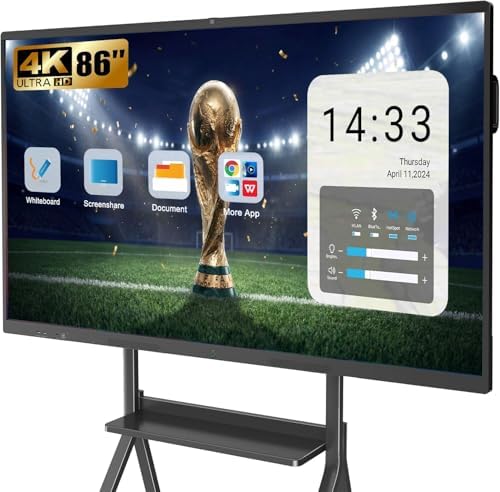
The YCKJNB is an 86-inch 4K interactive display with Android 14. Its large screen can give students a more visible shared workspace than the 65-inch options in this roundup, though room layout and seating distance still matter. The display supports up to 20 touch points, so several students can write or interact with content at once.
Its built-in 13-megapixel camera, eight-array microphone system, and two 20-watt speakers are designed for video calls and remote lessons. The board also supports wireless projection for up to four users, along with wired connections and reverse touch control. These features make it a more meeting-focused choice than a basic display.
The product description says a wall-mount bracket is included and notes that mobile stands are sold separately. Before choosing it, confirm that the wall can support the panel and that your classroom has the right placement and connection plan. The listing’s feature set is substantial, but schools should also check app compatibility and support details for their own setup.
Pros:
- Large 86-inch 4K screen for shared classroom work
- 20-point touch supports multiple simultaneous interactions
- Built-in camera, microphones, and speakers for video calls
- Supports wireless projection for up to four users
Cons:
- A mobile stand is not listed as included
- Schools should verify compatibility with their preferred apps and devices
Verdict: Choose the YCKJNB if you want a large interactive panel with built-in video-call hardware and multi-user touch, and have confirmed it fits your room and technology plan.
Promethean ActivPanel LE: A 65-Inch Panel with Google Tools

The ActivPanel LE pairs a 65-inch 4K display with Android and EDLA certification. It offers access to Google search and familiar tools such as Docs, Slides, Drive, Meet, and YouTube, along with Promethean apps for annotation, whiteboarding, screen sharing, timing, and classroom activities.
It can run on its own Android system, connect to a computer, or use a Promethean OPS module to switch to Chrome or Windows. That flexibility may help a school work with different classroom devices, but the 65-inch size is more modest than the 75- and 86-inch alternatives here. For a large room, consider how far students will sit from the screen and whether a 65-inch panel will be easy to read from the back.
Promethean describes the panel as straightforward to start using, which may appeal to teachers who want quick access to lesson tools. Still, the supplied details do not specify touch-point count, audio hardware, camera, or mounting accessories, so check the product listing and installation needs before making a school-wide decision.
Pros:
- 4K resolution on a 65-inch panel
- Android and EDLA certification with access to Google services
- Includes Promethean apps for annotation, whiteboarding, and screen sharing
- Can work independently, with a computer, or with an optional OPS module
Cons:
- Smaller screen than the 75- and 86-inch picks
- Touch-point count and built-in audio details are not provided in the supplied specifications
Verdict: The ActivPanel LE suits classrooms that want familiar Google and Promethean tools, provided its 65-inch screen is large enough for the room.
Samsung WAF 75-Inch Display: A Middle Ground for Android Classrooms

Samsung’s WAF Series is a 75-inch interactive display running Android OS 14. Its customizable home screen and compatibility with Android devices may make it a natural option for schools already using Android hardware. EDLA certification supports access to Google Play, YouTube, and other Google services.
The 75-inch size sits between the 65-inch Promethean LE and the larger 86-inch panels. That makes it a possible compromise when a classroom needs a more visible screen but cannot accommodate the largest option. The display also has an OPS slot, which can turn it into a Windows device when that is needed.
The supplied description does not list touch-point count, camera, speakers, or included mounting hardware. Those details matter when you are planning lessons that use several students at the board or need video conferencing, so check them before purchase. Its strongest stated fit is a school that values Android compatibility and Google services.
Pros:
- 75-inch screen with Android OS 14
- EDLA certification supports Google Play and other Google services
- Designed to work with Android devices
- OPS slot offers a path to Windows use
Cons:
- Touch, audio, and camera specifications are not included in the supplied details
- Smaller than the 86-inch displays for rooms that need the largest screen
Verdict: Consider the Samsung WAF if your school uses Android and Google services and a 75-inch screen suits your seating layout.
BenQ RM6504: A 65-Inch Interactive Whiteboard with Limited Listed Detail

The BenQ RM6504 is identified as a 65-inch interactive whiteboard. That screen size may work better in a smaller classroom or a room where students sit relatively close to the display than in a wide lecture-style space. The product information provided here does not specify resolution, operating system, touch capability details, ports, or included accessories.
That lack of detail makes it harder to compare the RM6504 feature by feature with the other options. If you are considering it for a large classroom, confirm the display’s resolution, touch functions, software, connectivity, and mounting requirements on the product listing before deciding. These points can affect how well it supports your lessons and existing classroom devices.
Its main advantage in this roundup is a clear stated screen size and an interactive-whiteboard designation from a known display brand. However, the supplied specifications are too limited to conclude that it offers particular software or collaboration features.
Pros:
- 65-inch interactive whiteboard format
- BenQ-branded option for shoppers comparing classroom displays
- May suit rooms where a 65-inch screen is an appropriate fit
Cons:
- Supplied details do not state resolution or operating system
- Touch, connectivity, and included accessories need to be verified
Verdict: The RM6504 is worth comparing if you are considering a 65-inch BenQ panel, but verify its full feature set before choosing it for a large classroom.
Promethean ActivPanel LX 86-Inch: A Flexible Large-Screen Setup

The Promethean ActivPanel LX is an 86-inch 4K display designed to work with a connected computer or a computing module. It includes a 4GB Android OPS, and its design avoids a permanently embedded operating system. That can be useful for schools that want to choose or change the computing setup rather than rely on a fixed built-in system.
The panel supports 20 simultaneous touch points, palm rejection, palm erase, and pen-and-touch differentiation. Its 16:9 screen has dual front-facing 15-watt speakers, HDMI 2.0 ports, Gigabit Ethernet ports for connected OPS devices, and a full-length pen tray. The listed package also includes a wall mount, two passive pens, a cable pack, and a mini-PC bracket.
Unlike the YCKJNB, the supplied details do not list a built-in camera or microphone array. It is therefore a stronger fit when screen size, touch features, and computer flexibility are priorities, rather than all-in-one video-conference hardware. Check your preferred computer or module setup and the classroom’s mounting plan before installation.
Pros:
- Large 86-inch 4K display with 20-point touch
- Includes a 4GB Android OPS and supports other optional computing modules
- Includes wall mount, passive pens, cable pack, and mini-PC bracket
- Pen-and-touch differentiation, palm rejection, and palm erase support varied writing use
Cons:
- Built-in camera and microphones are not listed
- Schools may need to plan which computer or OPS setup best fits their needs
Verdict: Pick the ActivPanel LX if you need an 86-inch interactive screen with flexible computing options and strong stated touch features.
How to Choose an Interactive Display for a Large Classroom
Choose a screen size that suits the room
A larger display can make lesson content easier to share across a wide classroom, but screen size alone does not guarantee visibility from every seat. Consider how far students sit from the board, the room’s width, and where the display will be mounted. The options here range from 65 to 86 inches, so compare the physical screen size with your actual seating plan.
Match the display to your lesson style
If students will regularly work at the board together, check the number of simultaneous touch points and how the display handles pens and hands. The YCKJNB and ActivPanel LX list 20-point touch. If lessons rely more on presenting content or annotating from the front of the room, software and computer compatibility may matter more than multi-user touch.
Check the operating system and app access
Built-in Android can let a display run apps without a separate computer. Google services and EDLA certification are specifically listed for the Promethean ActivPanel LE and Samsung WAF. The YCKJNB lists Android 14, while the ActivPanel LX includes an Android OPS and is designed for a modular computing setup. Confirm that the apps your teachers need are supported before buying.
Plan for computers, casting, and ports
Think about how teachers will connect laptops and how students will share screens. The YCKJNB lists wireless projection for up to four users and wired connections. The ActivPanel LX lists HDMI and Ethernet ports and can connect to a laptop by USB-C according to its description. The Samsung WAF has an OPS slot. Check the full port list and compatibility for the exact devices used at your school.
Decide whether built-in audio and video are important
Video lessons and remote participation can benefit from a camera, microphones, and speakers integrated into the display. The YCKJNB lists a camera, an eight-array microphone system, and two 20-watt speakers. The ActivPanel LX lists dual front-facing 15-watt speakers, while the supplied information for the other models does not provide comparable camera or audio details. If you plan to use video calls, verify what equipment is included.
Review mounting and installation needs
Large interactive panels need a suitable location and mounting plan. The YCKJNB description says a wall bracket is included, and the ActivPanel LX package lists a wall mount. Confirm the wall, mounting hardware, power access, cable routing, and installation requirements for the specific display. If you need a mobile stand, check whether it is included or must be purchased separately.
Compare the details that are missing
Not every product description here provides the same level of technical detail. Before ordering, check resolution, touch behavior, ports, software support, included accessories, and warranty or support terms in the current product information. This is especially important for the BenQ RM6504, whose supplied description lists few technical specifications.
FAQs
What screen size is best for a large classroom?
It depends on the room’s layout and how far students sit from the display. The 86-inch models offer the largest screens in this group, while 75- and 65-inch options may fit smaller or narrower rooms. Compare the screen size with your seating distance before choosing.
Which display has the most clearly stated multi-touch features?
The YCKJNB and Promethean ActivPanel LX both list 20-point touch. The ActivPanel LX also lists palm rejection, palm erase, and pen-and-touch differentiation.
Which option includes a camera and microphones?
The YCKJNB description lists a built-in 13-megapixel camera and an eight-array microphone system. The other supplied product descriptions do not list comparable built-in camera and microphone details.
Which displays include Google services?
The Promethean ActivPanel LE lists access to Google search, Docs, Slides, Drive, Meet, and YouTube. The Samsung WAF is EDLA-certified and lists support for Google Play, YouTube, and other Google services.
Can these displays work with a computer?
Several options support computer-based use. The ActivPanel LE can work with a computer or an optional Promethean OPS module. The ActivPanel LX can connect to a laptop and supports OPS modules. The Samsung WAF has an OPS slot, and the YCKJNB lists wired connections as well as wireless projection. Check the product details for compatibility with your devices.
Is a wall mount included?
The YCKJNB description says a wall-mount bracket is included. The ActivPanel LX package lists a wall mount. The supplied details for the other models do not confirm whether mounting hardware is included, so check the listing before ordering.
Which pick is the best starting point for a large room?
The Promethean ActivPanel LX and YCKJNB both have 86-inch 4K screens. The ActivPanel LX emphasizes touch features and flexible computing, while the YCKJNB lists a camera, microphones, speakers, and wireless projection. Choose based on whether your classroom needs modular computer options or built-in video-call hardware.
Final Recommendation
For a large classroom, start by comparing the 86-inch YCKJNB and Promethean ActivPanel LX. The YCKJNB is the more feature-complete fit on paper for video calls and wireless sharing, while the ActivPanel LX offers detailed touch controls and a flexible computing setup. If your school relies on Google services or Android devices, the 75-inch Samsung WAF and 65-inch Promethean ActivPanel LE may fit your workflow. The BenQ RM6504 needs closer specification checks because the available product details are limited.