
A good 4K webcam can make you look sharper in team calls, but image quality is only part of the decision. You’ll also want to consider autofocus, microphone pickup, framing, privacy controls, and whether you need a simple camera or a room-ready conference setup. These five options range from straightforward USB webcams to models with AI tracking and built-in speakers.
One useful caveat: a 4K-capable webcam does not guarantee that every Teams call will stream in 4K. Your computer, meeting settings, network, and the video platform can affect the final picture. Check the camera’s settings and Teams configuration if you want to use its highest resolution.
Quick Comparison: Best 4K Webcams For Teams Meetings
| Webcam | Best for | Standout features |
|---|---|---|
| EMEET C960 4K Webcam | Everyday solo meetings | PDAF autofocus, dual microphones, privacy cover |
| Logitech MX Brio | Collaboration and image controls | Show Mode, 4K at 30 fps, dual beamforming mics |
| Philips 4K Webcam | Simple plug-and-play use | Built-in microphone, privacy shutter |
| Insta360 Link 2 Pro | Presenters who move around | AI tracking, pan-and-tilt movement, large sensor |
| TONGVEO 3-in-1 4K Webcam | Small group calls | Auto framing, built-in speaker, remote control |
Our Picks: Best 4K Webcams For Teams Meetings reviews
EMEET C960 4K: A Straightforward Webcam for Solo Calls

The EMEET C960 is a USB-A webcam aimed at everyday video calls, remote work, and online teaching. Its 4K sensor is paired with PDAF autofocus, automatic light correction, and dual omnidirectional microphones. A privacy cover and plug-and-play setup make it a practical choice if you want a basic camera without a more involved conference-room system.
Its 73-degree field of view is relatively focused compared with the wider-angle options in this group. That can help keep attention on you instead of showing too much of your room. The camera’s video defaults to 1080p, however, so you need to switch to 4K through the camera software or a compatible app when you want the higher resolution.
The built-in microphones can simplify a desk setup, though they may not be the best choice if you need to capture several people across a room. The USB-A connection is convenient for computers with that port, but you may need an adapter if your device only has USB-C.
Pros:
- PDAF autofocus helps keep the image focused.
- Automatic light correction adjusts to different lighting conditions.
- Dual microphones and a privacy cover are built in.
- USB-A plug-and-play connection supports a simple setup.
Cons:
- Video defaults to 1080p, so 4K requires a settings change.
- The 73-degree view is better suited to one person than a group.
Verdict: Choose the EMEET C960 if you want a focused, feature-rich webcam for solo Teams calls and are comfortable switching its settings to 4K.
Logitech MX Brio: Flexible Controls for Calls and Collaboration

The Logitech MX Brio is designed for both video calls and streaming. It supports 4K at 30 frames per second or 1080p at 60 frames per second, giving you a choice between higher resolution and a smoother lower-resolution picture. Logitech also lists the camera as certified for Microsoft Teams, Zoom, and Google Meet.
One distinctive feature is Show Mode. You can tilt the webcam down to show notes or sketches on your desk during a call, which may be useful when you need to explain an idea or share work in progress. Image controls let you adjust settings such as white balance and exposure, or rely on automatic adjustments instead.
Dual beamforming microphones use noise reduction to help limit background sound. This can make the webcam a convenient all-in-one option for a desk, although it is still worth using a separate microphone if audio quality is a priority in a noisy space. The supplied listing is marked unavailable, so confirm its current availability before making it your first choice.
Pros:
- Offers a choice of 4K at 30 fps or 1080p at 60 fps.
- Show Mode makes it easier to share desk-level notes and sketches.
- Manual image controls provide more ways to tune your appearance.
- Dual noise-reducing microphones are built in.
Cons:
- The supplied listing is marked unavailable.
- Some of its image controls may be unnecessary if you prefer a simple automatic setup.
Verdict: The MX Brio is a strong fit if you value Show Mode and hands-on image adjustments, provided you can find it available and want to spend time tuning your setup.
Philips 4K Webcam: Simple Setup with a Physical Privacy Shutter
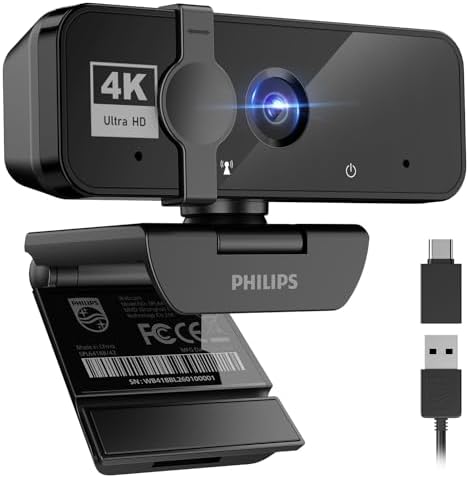
This Philips webcam keeps its feature set simple. It offers 4K video, an integrated microphone, and a physical shutter that slides over the lens when you are not on camera. The stated plug-and-play design is intended to get you started by connecting the webcam to a computer over USB, without downloading drivers.
Its straightforward approach may suit you if you mainly need a camera for regular Teams calls, virtual classes, or presentations and do not need tracking or motorized movement. The built-in microphone provides an all-in-one option for everyday conversations, but the product information does not specify advanced audio features such as beamforming or noise cancellation.
The listed compatibility includes Windows and macOS, along with Teams, Skype, and Google Meet. Unlike some alternatives here, the Philips model does not list a specific autofocus system, adjustable field of view, or frame rate, so check the product details if one of those features is important to your setup.
Pros:
- Physical privacy shutter blocks the lens when the webcam is not in use.
- Plug-and-play setup is designed to avoid driver installation.
- Built-in microphone provides basic audio without extra gear.
- Listed for use with Windows, macOS, and major meeting platforms.
Cons:
- The supplied details do not specify autofocus or adjustable framing features.
- Its integrated microphone may not meet the needs of a noisy room or group meeting.
Verdict: Pick the Philips if you want a simple 4K webcam with a physical privacy shutter and do not need advanced tracking or image controls.
Insta360 Link 2 Pro: AI Tracking for Presenters on the Move

The Insta360 Link 2 Pro is a more advanced option for people who present while standing or moving around a room. Its PTZ design can physically pan and tilt to follow movement, while AI tracking is intended to keep you or your group in frame. A large 1/1.3-inch sensor is listed as a key part of its image system, with low-light performance and HDR among the advertised features.
It also offers modes for desk views, whiteboards, and portrait framing, along with gesture and smartphone controls. These tools make it more adaptable than a basic fixed webcam, especially if you regularly switch between speaking to camera and showing something in your workspace. The tradeoff is a more involved setup: you may need to use its dedicated Link Controller software to adjust settings and access advanced features.
The camera is listed as compatible with Microsoft Teams and other major meeting platforms, as well as Windows, macOS, Chrome OS, and Linux. The supplied information notes that it is not currently compatible with ARM-based Windows systems or Windows Hello face recognition, so check your computer before buying.
Pros:
- Physical pan-and-tilt tracking can follow a presenter around a room.
- Modes include DeskView, Whiteboard, and 4K portrait framing.
- Large sensor and HDR features are designed for detailed video and challenging light.
- Gesture and smartphone controls offer alternatives to desk-based adjustments.
Cons:
- Advanced features may take more setup than a basic plug-and-play camera.
- Not compatible with ARM-based Windows systems, according to the supplied details.
Verdict: Choose the Insta360 Link 2 Pro if you move while presenting or need whiteboard and desk-view modes; for a fixed desk call, its extra features may be more than you need.
TONGVEO 3-in-1: A Conference-Style Setup for Small Groups

The TONGVEO combines a 4K webcam with dual microphones and a built-in speaker, making it the most conference-room-oriented option in this group. Its listed video resolution is up to 4K at 30 frames per second. Auto framing is designed to center meeting attendees, while voice tracking is intended to follow the active speaker.
A remote control lets you switch among three listed fields of view: 118, 100, and 88 degrees. It also provides 5x digital zoom and controls for functions such as muting the microphone and turning off video. Those adjustments can be useful when several people share a room, but they add controls you may not need for a one-person desk setup.
The built-in 3-watt speaker and microphones can reduce the need for separate audio gear. The listed microphone pickup range is up to 16.4 feet, though room layout and background noise can affect how well voices carry in practice. Because the camera includes a speaker and microphones in one unit, check how it fits your existing audio setup before using it alongside other sound devices.
Pros:
- Combines a webcam, dual microphones, and a speaker in one device.
- Auto framing and voice tracking are designed for group calls.
- Remote control offers zoom, mute, and field-of-view adjustments.
- Three listed viewing angles provide flexibility for different room setups.
Cons:
- The wider group-oriented framing may show more of your room than you want for solo calls.
- Its speaker and microphone features may be unnecessary if you already use separate meeting-room audio gear.
Verdict: The TONGVEO is the most suitable pick here for a small team sharing one room, especially if you want framing, speaker, and microphone features together.
How to Choose a 4K Webcam for Teams Meetings
Match the camera to your meeting setup
If you usually join calls alone from a desk, a focused webcam with autofocus may be all you need. For a shared room, look for a wider field of view or automatic framing that can include several people. If you present while standing or walking, a tracking camera with pan-and-tilt movement can keep you in view more effectively than a fixed camera.
Think about how you will use 4K
Check the webcam’s supported resolution and the settings needed to enable it. For example, the EMEET C960 defaults to 1080p and requires a settings change to use 4K. A camera’s maximum resolution is only one part of the result: your computer, call settings, internet connection, and meeting software can all affect the video that other people see.
Choose autofocus and lighting features for your space
Autofocus is useful if you move closer to the camera or switch between speaking and showing an object. Automatic light correction can help when your room has uneven lighting. If you want more control over your look, consider a webcam with adjustable image settings. For the best results, place a light source in front of you rather than relying only on the webcam to correct a dark or backlit scene.
Decide whether built-in audio is enough
Several options include microphones, and the TONGVEO also has a built-in speaker. These features can help keep a basic setup tidy, but microphone pickup varies by room and distance. A webcam microphone may work well for a quiet desk, while a larger or noisier meeting space may call for dedicated audio equipment. Check whether the camera you choose has the type of microphone pickup your setup requires.
Check framing, movement, and controls
A narrower view can keep attention on one speaker, while a wider view can show more people around a table. Motorized tracking, adjustable fields of view, digital zoom, and remote controls offer more flexibility, but they can also add complexity. Choose the controls you will actually use instead of paying attention to feature names alone.
Confirm connection and computer compatibility
Check the webcam’s connection type and make sure your computer has a matching port or that you have a suitable adapter. Also confirm operating system compatibility. The Insta360 Link 2 Pro’s supplied product information, for example, notes that it is not compatible with ARM-based Windows systems. A quick compatibility check can prevent setup problems later.
Consider privacy and setup effort
A physical privacy cover or shutter gives you a direct way to block the camera when it is not in use. Plug-and-play models can be appealing if you want to connect a camera and get started with minimal setup. More advanced cameras may offer tracking, gesture controls, or dedicated software, so consider whether those tools are worth the extra configuration for your meetings.
Frequently Asked Questions
Will a 4K webcam always show 4K video in Teams?
No. A webcam’s 4K capability does not ensure that every call will be delivered in 4K. The camera settings, computer, Teams configuration, network, and other factors can affect the resolution people see. Check your webcam settings and meeting setup if you want to use its highest resolution.
Which webcam is best for a small team in one room?
The TONGVEO is the most group-focused option in this list. It includes auto framing, voice tracking, a built-in speaker, dual microphones, and adjustable fields of view. The Insta360 Link 2 Pro is another option if you need a moving presenter tracked around a room.
Which option is best for a solo desk setup?
The EMEET C960 is a practical choice for solo calls, with autofocus, light correction, dual microphones, and a focused 73-degree view. The Philips is another simple option if a privacy shutter and basic plug-and-play setup matter more to you than advanced framing controls.
Do I need a separate microphone with a 4K webcam?
Not always. The EMEET, Logitech, Philips, Insta360, and TONGVEO options listed here include microphones. A separate microphone may still be useful if you need stronger audio pickup, have a noisy room, or want more control over sound. The right choice depends on your room and how far you sit from the camera.
Why would I choose a webcam with a privacy cover?
A physical cover or shutter lets you block the camera lens when you are not in a call. The EMEET C960 and Philips webcam list privacy features, while the TONGVEO product information also mentions a privacy cover. It is a simple way to keep the camera from showing your workspace when you do not want video.
What should I check before buying a webcam for my computer?
Confirm that your operating system is supported, that the connection works with your computer, and that the webcam’s features match how you meet. If you need a certain resolution, field of view, or tracking mode, check whether it works with your chosen software and computer rather than relying on the webcam’s maximum specifications alone.
Final Recommendation
For most solo Teams calls, the EMEET C960 offers a useful mix of autofocus, light correction, built-in microphones, and a privacy cover, though you need to switch settings to enable 4K. Choose the TONGVEO if you need an all-in-one setup for a small group, or the Insta360 Link 2 Pro if you move around while presenting. The Philips is a good fit for simple plug-and-play use, while the Logitech MX Brio stands out for Show Mode and image controls if it is available. Match your choice to your room, computer, and meeting style rather than choosing on resolution alone.